Properties Panel
Configure operator inputs, manage field visibility, and access context actions in the Properties Panel sidebar.
Overview
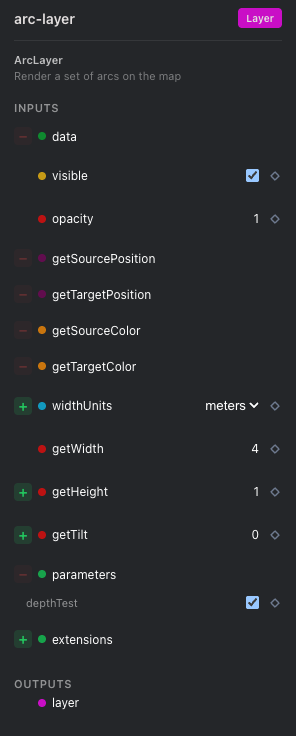
The Properties Panel appears on the right side of the editor when you select a node (operator) on the canvas. It displays the operator's name, type badge, description, and all configurable fields organized into Inputs and Outputs sections.
Inputs
Editing Field Values
When an input field is not connected to another operator's output, you can edit its value directly. The editor adapts to the field type:
| Field Type | Editor |
|---|---|
| Number | Numeric input with scroll-to-scrub |
| String | Text input |
| Boolean | Checkbox toggle |
| Color | Color swatch with picker |
| Select | Dropdown menu |
| Vector | Multi-channel numeric inputs |
Field Indicators
Each field row shows several visual cues:

- Colored dot (left side) — indicates the field's type category and connection handle color
- +/− button — show or hide the field from the panel
- Diamond icon (◇) — keyframe indicator for animation. Click to add a keyframe at the current timeline position. See Animation and Rendering for details.
Showing and Hiding Fields
Operators often have many input fields. You can manage which ones are visible:
- Click the + button to show a hidden field
- Click the − button to hide a visible field (resets to default value)
Fields with active connections cannot be hidden until disconnected.
Outputs
Output fields display the values produced by the operator. They cannot be edited directly but can be connected to other operators' inputs by dragging from the output handle on the node.
Right-Click Context Menu
Right-click any field row to access the context menu:
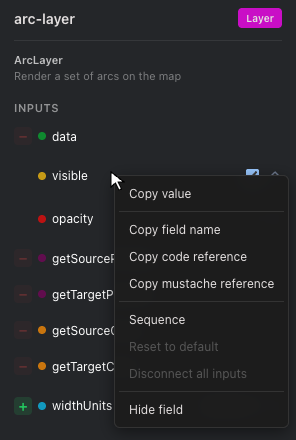
Input fields
| Action | Description |
|---|---|
| Copy value | Copy the field's current value to the clipboard (disabled for non-value fields) |
| Copy field name | Copy the field's identifier (e.g., opacity) |
| Copy code reference | Copy a JavaScript reference for use in CodeOp (e.g., op('/arc-layer').par.opacity) |
| Copy mustache reference | Copy a mustache template reference for DuckDbOp (e.g., {{/arc-layer.par.opacity}}) |
| Sequence | Convert to a keyframed animation track (shown when field has no keyframes) |
| Make static | Remove all keyframes and lock to current value (shown when field has keyframes) |
| Reset to default | Reset the field to its original default value (disabled when already at default or connected) |
| Disconnect all inputs | Remove all incoming connections to this field (enabled only for list fields with connections) |
| Hide field | Hide the field from the panel (disabled when connected) |
| Show field | Show a hidden field in the panel |
Output fields
Output fields show a reduced context menu with copy actions only:
| Action | Description |
|---|---|
| Copy value | Copy the output's current value (disabled if value is not serializable) |
| Copy field name | Copy the field's identifier |
| Copy code reference | Copy a JavaScript reference (e.g., op('/arc-layer').out.layer) |
| Copy mustache reference | Copy a mustache template reference |
Actions are context-sensitive: items appear disabled when not applicable to the current field state.
Related
- Introduction to Workflows — Fields and connections fundamentals
- Animation and Rendering — Keyframes and timeline editor
- Essential Operators — Available operators and their fields